 In this page

AI Agents
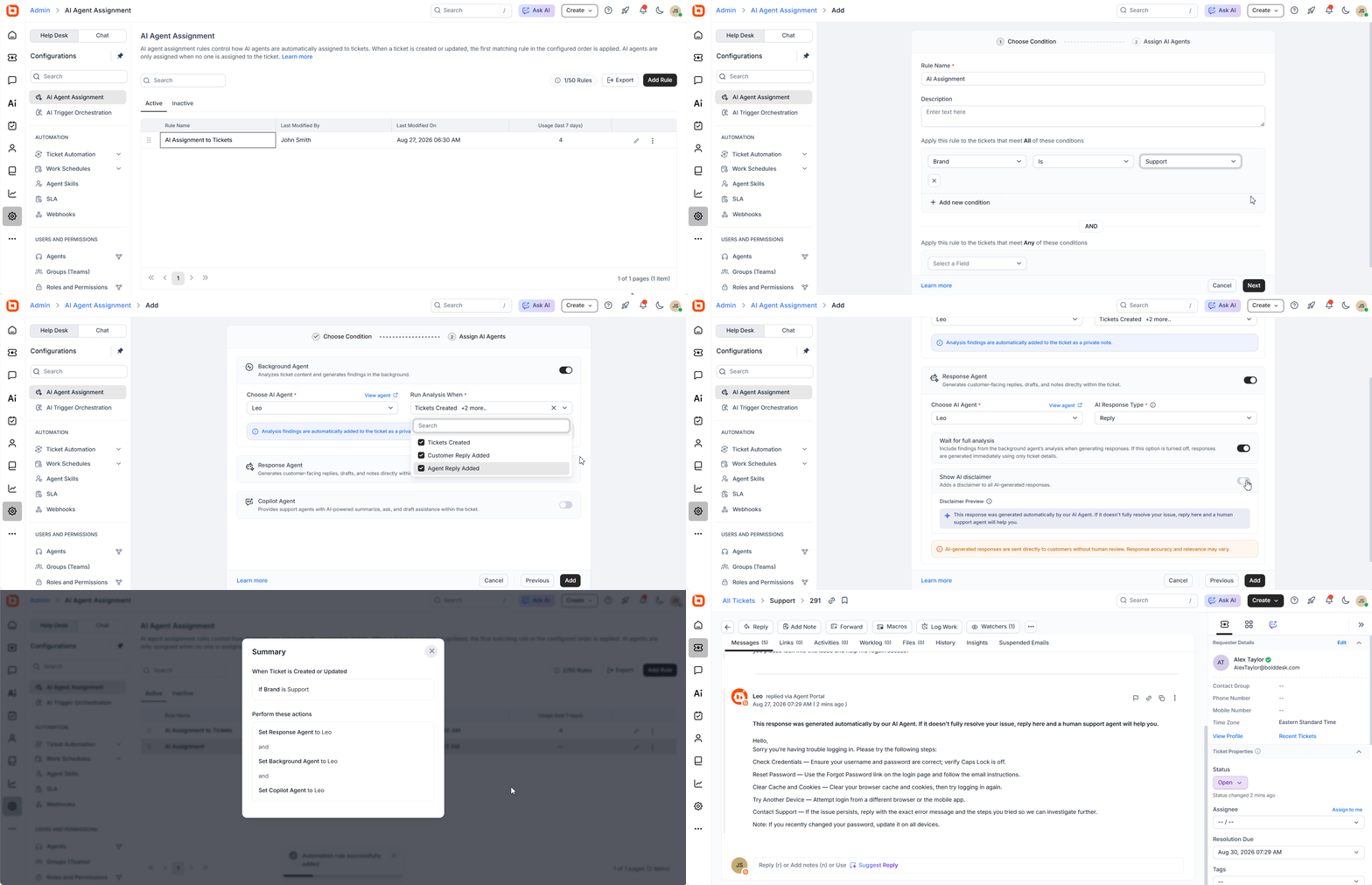
BoldDesk now supports three distinct AI agent types that can be assigned to tickets through AI Agent Assignment — an automation framework that attaches the right agent to a ticket based on predefined events and conditions, independently of your ticket routing workflows.
Response Agent
Response Agents handle customer-facing and internal correspondence directly on the ticket. Once assigned, a Response Agent can generate replies, drafts, public notes, and private notes, giving your team a head start on every conversation instead of starting from a blank editor.
- Generate full replies and reply drafts for agent review
- Add public notes visible to the customer
- Add private notes for internal context
- Assigned automatically via event- and condition-based rules
By keeping response generation available throughout the ticket lifecycle, teams reply faster and more consistently while agents retain full control over what is sent.
Background Agent
Background Agents work silently behind the scenes. Rather than drafting messages, they analyze ticket content and generate insights that feed your AI-powered workflows — enriching a ticket with analysis the moment it qualifies, without any visible reply.
- Analyze ticket content as tickets are created or updated
- Generate insights that support downstream AI workflows
- Operate independently of agent-facing and customer-facing replies
- Assigned automatically through the same event- and condition-based rules
Background Agents let you layer intelligent analysis onto tickets without adding noise to the conversation, powering automation that runs quietly in the background.
Copilot Agent
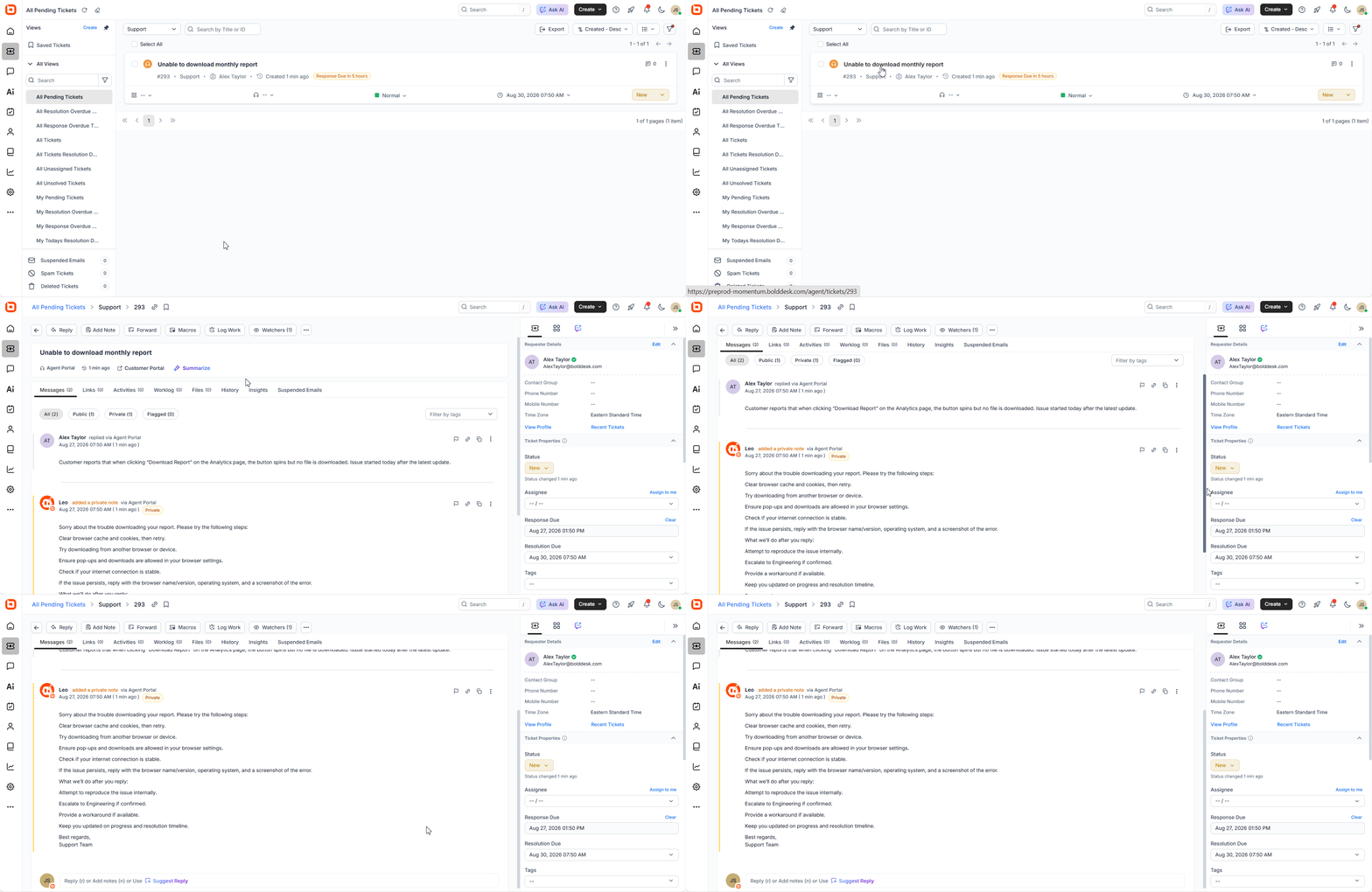
Ticket Copilot Agents assist agents directly inside the ticket. They provide AI-assisted capabilities such as ticket summarization, contextual assistance, and draft suggestions — everything an agent needs to get up to speed and respond without leaving the workspace.
- Summarize long ticket threads into a quick recap
- Offer contextual assistance based on the ticket at hand
- Suggest drafts agents can refine and send
- Assigned automatically via event- and condition-based rules
By automating agent assignment through configurable rules across all three agent types, organizations improve efficiency, deliver more consistent support, and keep tighter control over AI-powered ticket automation.
AI Automation
AI Trigger Orchestration
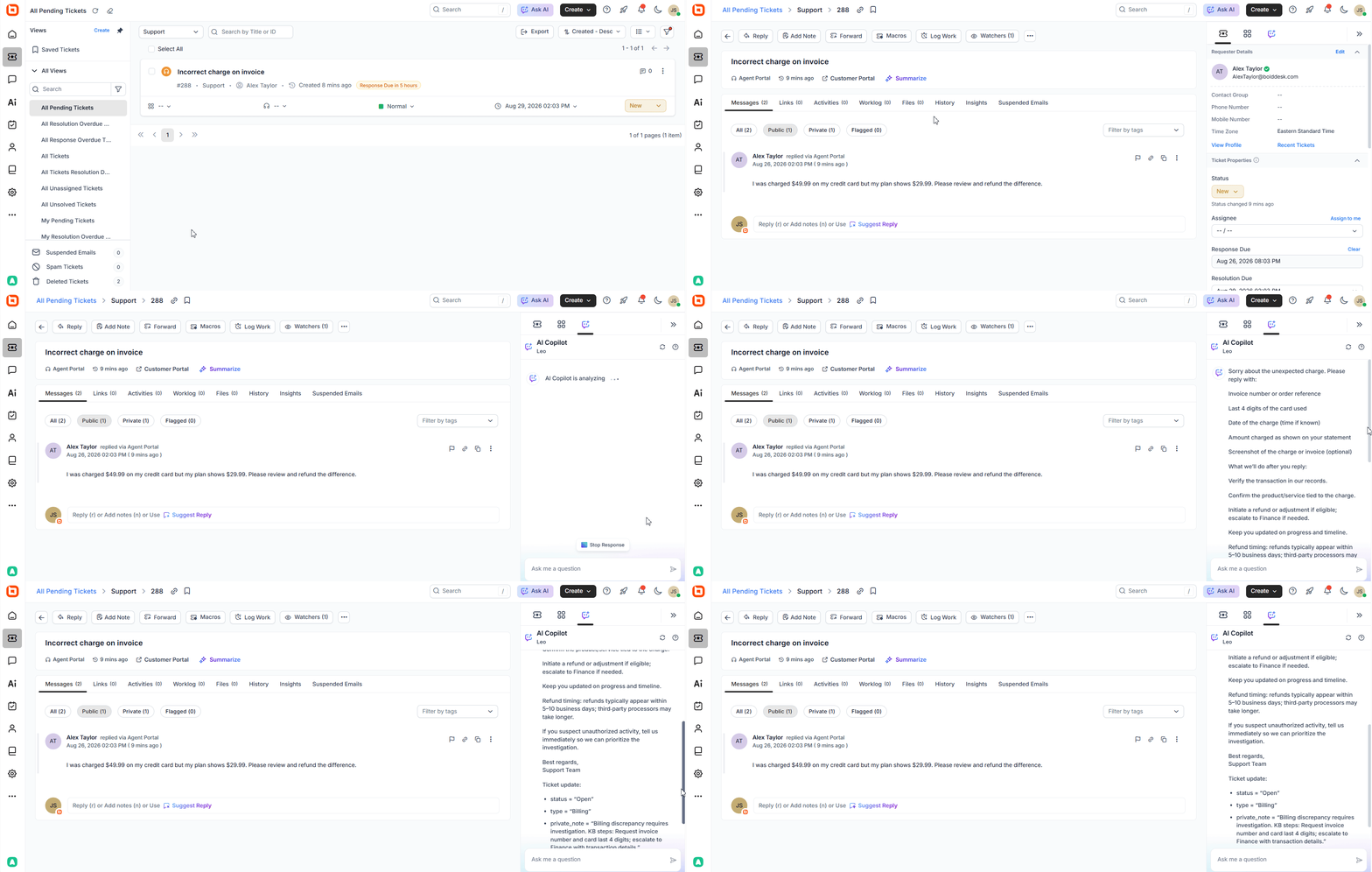
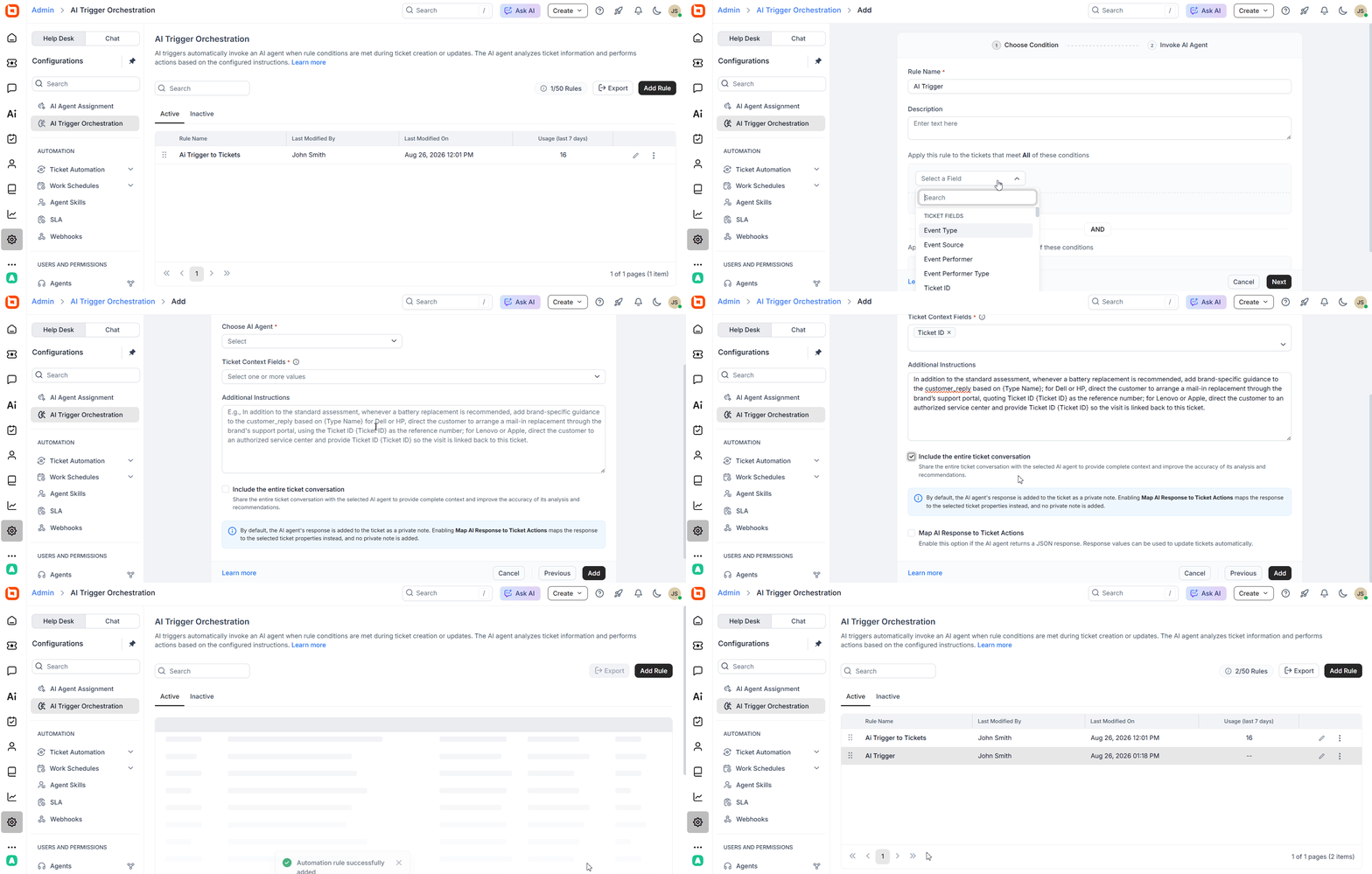
BoldDesk now includes AI Trigger Orchestration, letting organizations automate ticket workflows by invoking AI Agents when predefined ticket conditions are met. The agent can analyze selected ticket information, generate an intelligent response, and perform automated actions based on the instructions and rules you configure.
Administrators define exactly what ticket context is passed to the AI Agent and customize how the agent processes that data. By default, AI-generated output is added as a private note, giving your team clear visibility into the AI’s analysis and recommendations.
- Invoke AI Agents automatically when ticket conditions match
- Control the ticket context supplied to the agent
- Post AI output as a private note by default
- Map AI responses to ticket actions — update category, priority, and other supported fields automatically
For advanced scenarios, AI responses can be mapped directly to ticket actions, helping teams reduce manual effort, standardize processing, improve consistency, and streamline support operations.
BoldDesk MCP
BoldDesk MCP Server: OAuth 2.0 Support and Authentication Controls
The BoldDesk MCP Server previously supported only API key authentication. We have now introduced two major enhancements:
OAuth 2.0 Authentication (Beta)
In addition to API key authentication, the MCP Server now supports OAuth 2.0, providing secure, scoped, and token-based access. This is ideal for AI copilots, IDE extensions, and third-party integrations. API key authentication remains available for backend services, scripts, and automation scenarios.
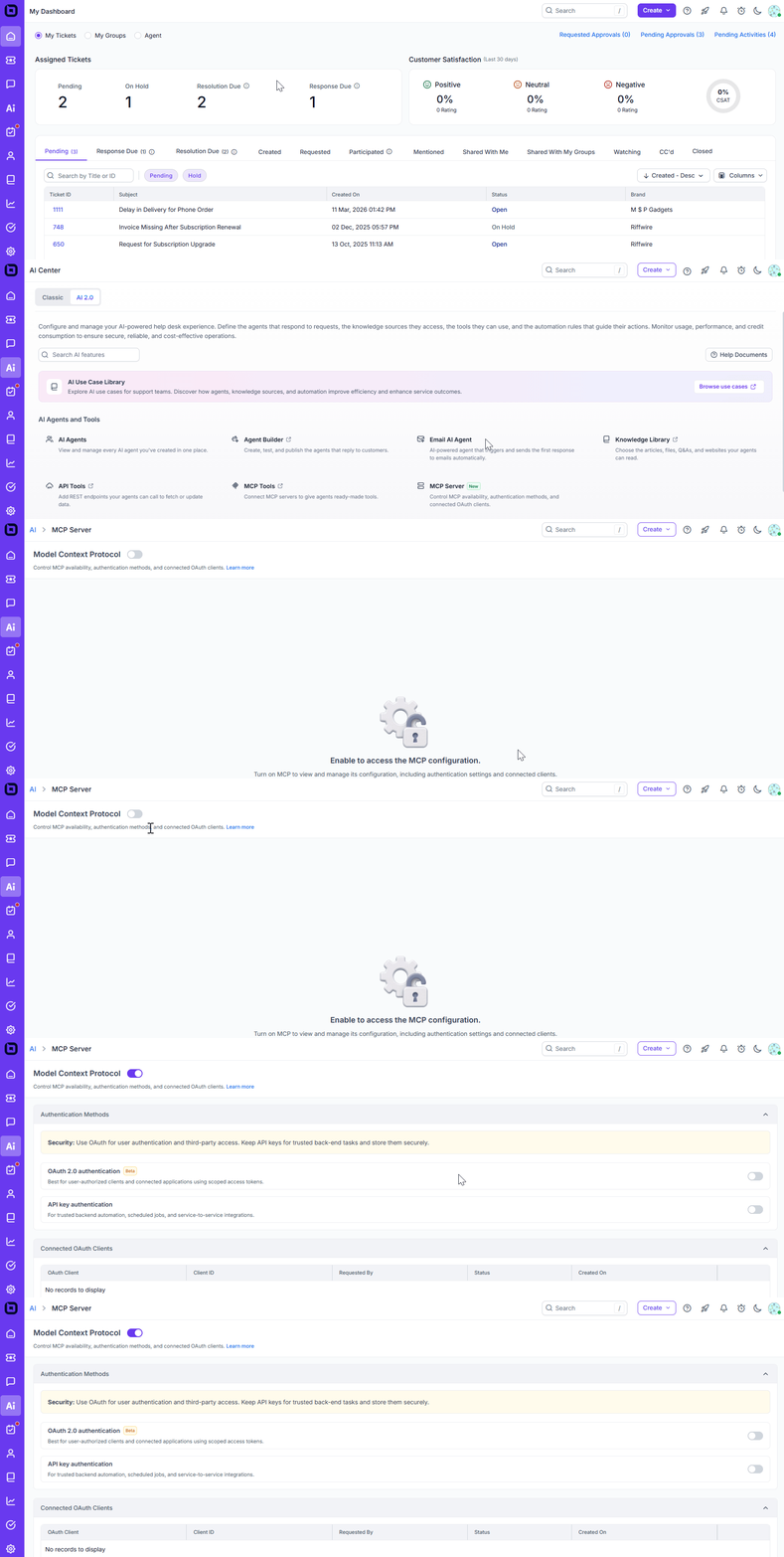
BoldDesk MCP Server Authentication Using OAuth 2.0
Admin Controls for MCP
Administrators can now manage MCP Server settings from AI → MCP Server, including:
Enabling or disabling the MCP Server Independently enabling or disabling OAuth 2.0 and API key authentication Viewing and revoking connected OAuth clients
Existing API key integrations will continue to work without any changes.
How to Configure the MCP Server in BoldDesk?
AI Field Prediction
Additional Instructions for AI Field Prediction
The AI Predict action in automation rules now supports Additional Instructions, giving admins finer control over how field values are predicted. Two new options are available: Ticket Context Fields, for sharing extra ticket fields with the AI as prediction context, and AI Instructions, for adding plain-language guidance on how a specific field should be predicted.
This makes AI Field Prediction more accurate for cases that need signal beyond the ticket’s subject and description for example, using Priority or Source as context, or instructing the AI to “Set the category to Billing when the ticket mentions invoices, payments, refunds, or charges.”
Additional Instructions apply per AI Predict action, so different fields in the same rule can each carry their own context and guidance.
AI Answers
Agent Portal
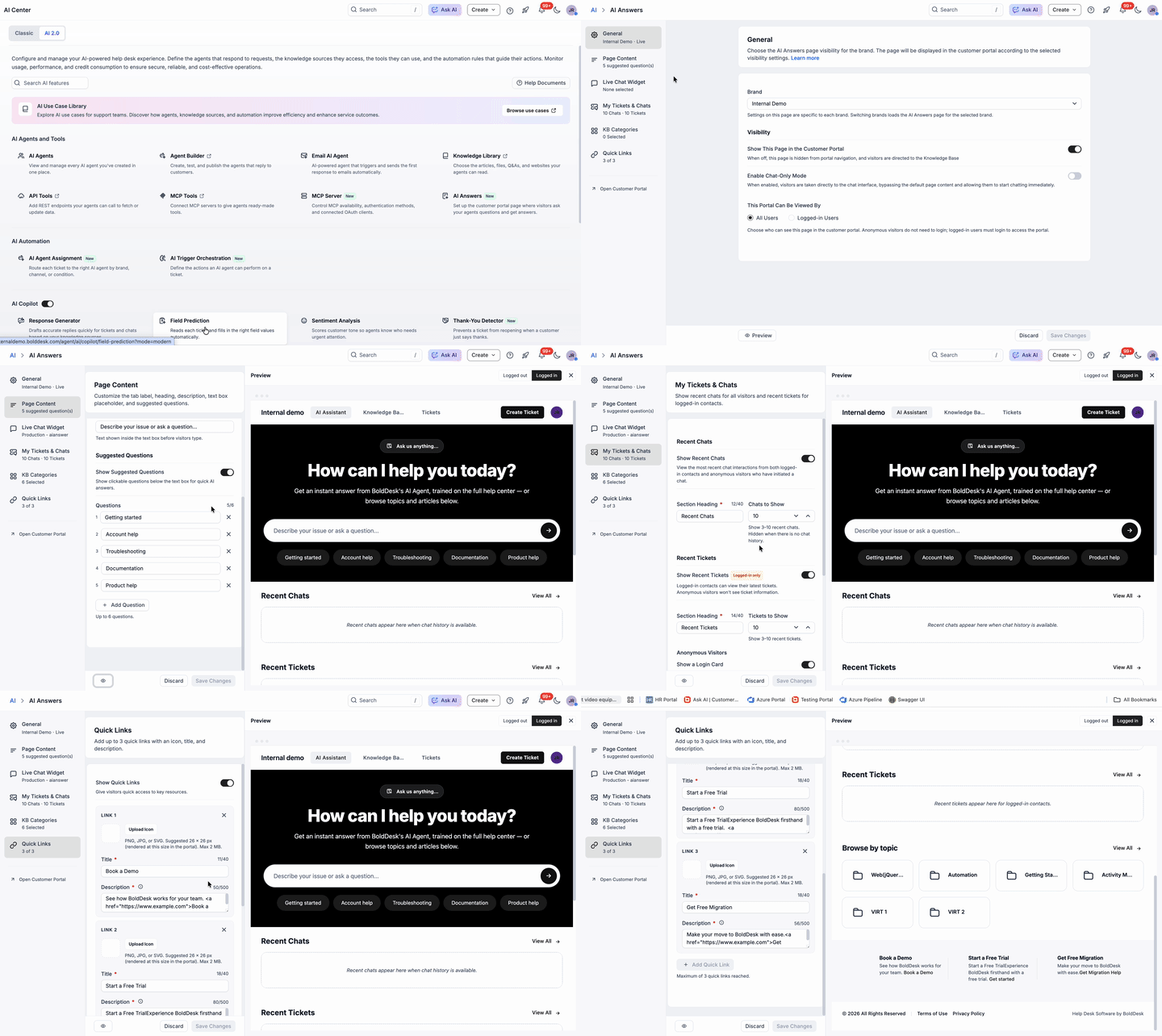
Admins can now configure a dedicated AI Answers page for the customer portal, available under AI → AI 2.0 → AI Answers in the AI Center. Configuration is brand-specific and includes:
- General settings — choose the brand, toggle page visibility in the customer portal, optionally enable chat-only mode, and control access (all users vs. logged-in users only).
- Page content — set the portal tab label, eyebrow label, page title, description, and text box placeholder, plus up to 6 suggested/FAQ-style questions that visitors can select instead of typing.
- Live chat widget — select which live chat widget powers the page; its mapped AI Agent and availability settings carry over automatically. (The AI Agent can’t be chosen independently — it’s tied to the selected widget.)
- My tickets & chats — configure Recent Chats and Recent Tickets (3–10 items each, with customizable headings), plus an optional sign-in card for anonymous visitors.
- KB categories — display up to 8 knowledge base categories so visitors can browse content directly from the page.
- Quick links — add up to 3 links, each with an icon, title, and rich-text description (bold/italic/underline/hyperlinks) pointing to important resources.
A Preview option is available in every section, and changes must be saved and published before they appear on the live portal. Admins can validate the final experience via Open Customer Portal.
Customer Portal
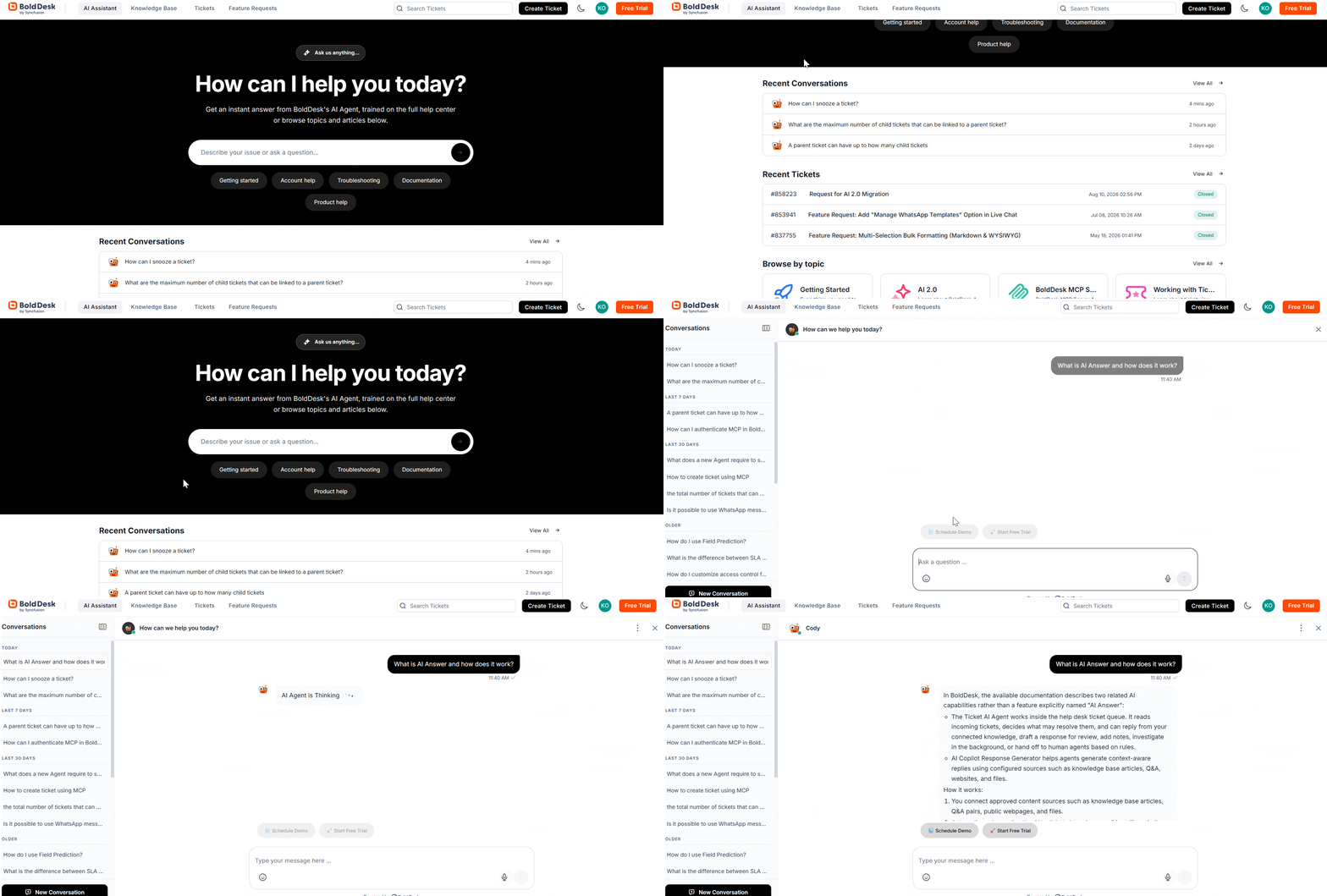
The customer portal now includes a dedicated AI Answers page, giving visitors an always-available ask box backed by your mapped AI Agent, right from the portal home. The ask box runs on your live chat widget’s AI Agent, so every conversation started from this page carries the same agent and context as your live chat — no separate setup needed.
Asking a question opens a full-page chat experience, with a collapsible chat history sidebar so visitors can pick up earlier conversations without losing context. The home page also surfaces Recent chats for every visitor and Recent tickets for signed-in contacts, each independently configurable — including its heading and how many recent items to show.
For widgets configured for a single active conversation, a new message from the ask box is added to the visitor’s existing open conversation if one exists, or begins a new conversation if none exists — keeping each visitor’s conversation history clean and consistent with how the widget is configured.